

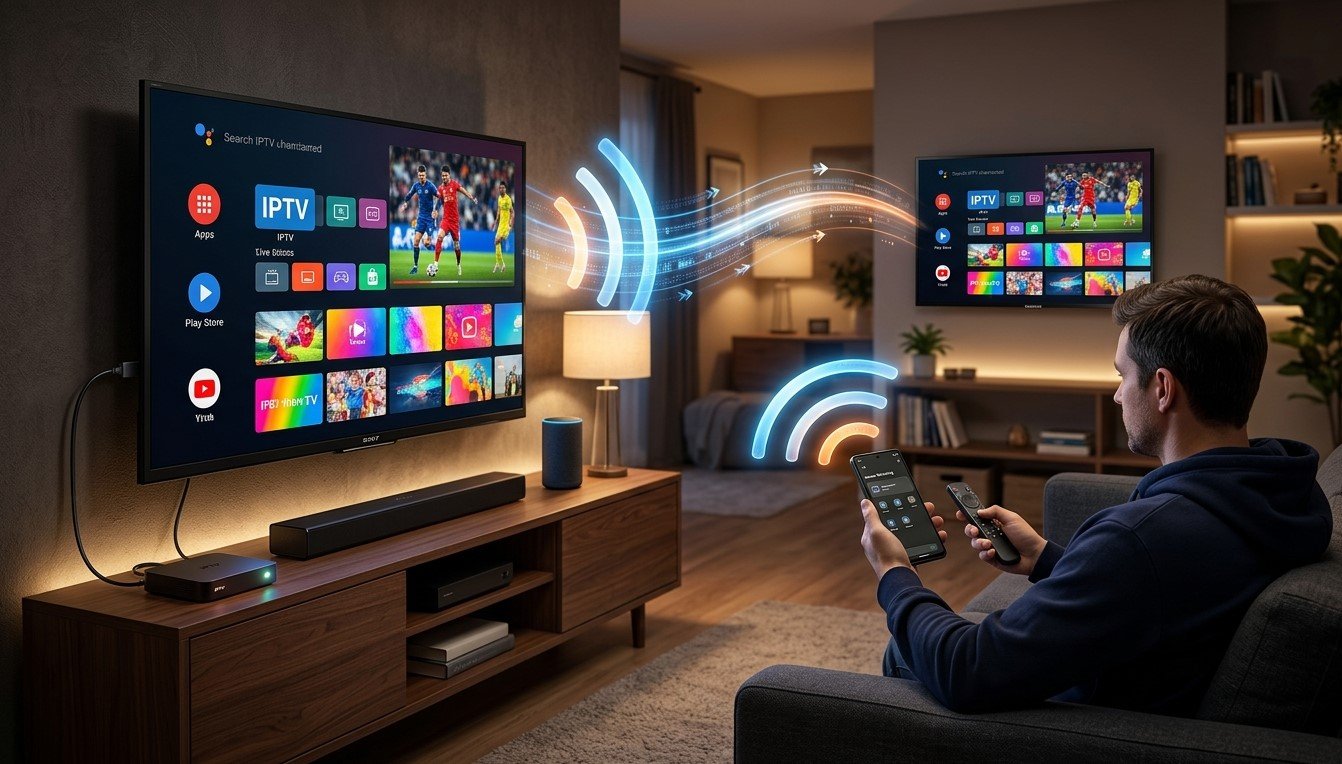

You have one streaming box on the living room TV and a second TV in another room, and you’d rather not buy and set up another device. Several wireless options can get the picture across, but they work in different ways, and one limitation catches almost everyone out. In this guide, we’ll explain each method, what it can and can’t do, and when a second device is the better answer, so IPTV India reaches both screens from your Indian IPTV Box.
Features, names, and compatibility vary by TV, box, and phone. Check your manuals, and test before relying on a setup for an important event.
Table of Contents
- The Limitation to Understand First
- Option 1: Wireless HDMI Kits
- Option 2: Miracast
- Option 3: AirPlay
- Option 4: Google Cast and Casting From Apps
- Option 5: Use the Second TV’s Own Apps
- Comparing the Options
- Connection Limits and Plan Terms
- Troubleshooting
- FAQs
The Limitation to Understand First
Your box produces one picture. Anything that wirelessly relays that output, such as a wireless HDMI kit, simply duplicates the same channel to both TVs. You can’t watch a match in the living room while someone watches a serial in the bedroom, and changing the channel changes it everywhere. Our guide on HDMI splitters describes the same limit.
Independent viewing needs a second source. That might be a phone or tablet casting its own stream, or the second TV’s built-in app. Decide which you actually want before you spend money.
Option 1: Wireless HDMI Kits
A kit has a transmitter that plugs into your box’s HDMI output and a receiver that plugs into the second TV.
Pros:
- Works with any HDMI source, including your box
- No apps or accounts on the second TV
- Often supports passing the picture to both TVs at once
Cons:
- Same content on both screens
- Quality and delay vary. Some add a small lag, which can be noticeable for fast sport
- Range and walls matter, and interference from other wireless devices can cause dropouts. Some kits use the 5 GHz band, some use other radio bands, so check what yours uses
- Protected content can be an issue. Some kits handle copy protection well and others show a blank screen
- Cost. Reliable kits can cost as much as a second streaming stick
Setup is usually simple: connect the transmitter to the box and power, connect the receiver to the second TV and power, then select the HDMI input. Place the transmitter in the open, not inside a cabinet.
Option 2: Miracast
Miracast is a wireless screen-sharing standard supported by many Android phones, Windows PCs, and some TVs. Your phone or laptop sends its screen to a compatible TV directly, without a router.
- What it can do: Mirror a phone, tablet, or laptop to the second TV
- What it usually can’t do: Pull the picture from your box. Boxes typically output over HDMI and don’t act as a Miracast source, though some models differ, so check yours
- Result: If you run your IPTV app on a phone or laptop and mirror it, that device becomes a separate stream, which can allow different content on each TV
Mirroring uses battery and can lag. Some apps block mirroring of protected video, which can leave a black picture. Support also varies across brands, since some TVs drop Miracast or rename it.
Option 3: AirPlay
AirPlay lets Apple devices send video or their screens to AirPlay-compatible TVs and some streaming devices.
- Casting from an app: If your IPTV app supports AirPlay, you can send the video to the TV while your phone stays free
- Mirroring: Shows whatever is on your iPhone or iPad
- Requirements: Both devices on the same network, and a TV that supports AirPlay
- Limits: App support varies, and some protected content won’t mirror
Like Miracast, it works from a phone or tablet, not from your box.
Option 4: Google Cast and Casting From Apps
Google Cast lets compatible apps send video to TVs and sticks with Cast built in.
- App casting: If your IPTV app has a cast button, the TV pulls the stream and your phone is just the remote. Quality is usually better than mirroring, and your phone can lock or sleep
- Mirroring: Some Android devices can also mirror their screen
- Requirements: Same network, a Cast-capable TV or stick, and an app that supports casting
Many IPTV apps don’t support casting, so check yours. Our guide on phones as remotes and casting problems covers similar ground.
Option 5: Use the Second TV’s Own Apps
If the second TV is a smart TV, the simplest fix may be installing your provider’s app on it, if available. No wireless relay, no extra hardware, and the second TV gets its own independent stream. Check with your provider which TV platforms are supported, and read our guide on whether your smart TV is too old. If the TV can’t run the app, a low-cost streaming stick often costs about the same as a wireless HDMI kit and is generally more dependable.
Comparing the Options
| Method | Source | Independent content? | Main drawback |
|---|---|---|---|
| Wireless HDMI kit | Your box | No, mirrors | Delay, range, cost |
| Miracast | Phone or laptop | Yes | Battery, lag, support varies |
| AirPlay | iPhone, iPad, Mac | Yes | Needs Apple device and app support |
| Google Cast | Phone or tablet app | Yes | App must support casting |
| TV’s own app | Second TV | Yes | TV must run the app |
| Second stick or box | New device | Yes | Extra device |
Connection Limits and Plan Terms
- Mirroring your box’s output doesn’t add a stream, because it’s one stream shown twice
- Casting or running the app on another device usually counts as a separate connection, so check your plan’s limit. If you hit it, see our guide to “maximum connections” errors
- Don’t try to work around connection limits. If your household needs two independent streams, ask your provider about a plan with more connections
- Keep to the terms on where and how the service may be shown. Our guide on terms of service explains what to look for
Troubleshooting
- No picture on the second TV: Check the input, power on both transmitter and receiver, and move them closer for a test
- Black screen on a mirrored app: Copy protection may be blocking it. Try casting from inside the app, or a different method
- Stutter or dropouts: Reduce distance and obstacles, move away from interference, switch to 5 GHz Wi-Fi for casting, and consider Ethernet on the source
- Audio out of sync: Use an audio delay setting, or try a wired option. Our guide on lip-sync delay covers fixes
- Casting can’t find the TV: Make sure both devices are on the same network, not a guest network, as our home network guide explains
- Works at first, then drops: Update firmware, restart devices, and check for heat
FAQs
1. Can I watch different channels on two TVs with a wireless HDMI kit?
No. It relays the same output, so both TVs show the same channel.
2. Is a wireless HDMI kit better than a second streaming stick?
Usually not. A second stick gives independent viewing, and tends to be more reliable and no more expensive.
3. Can my Indian IPTV Box cast to another TV?
Some Android-based boxes can, but many can’t. Check the manual for screen-casting options.
4. Will casting count toward my device limit?
It often does, since another device may open its own connection. Check your plan details.
5. Why is mirrored video black?
The app may block mirroring of protected content. Try casting from inside the app instead.
Choose the Method That Fits
For simply showing the same channel in two rooms, a wireless HDMI kit can work. For independent viewing, a second source is the answer. Pair a dependable IPTV India subscription with a well-set-up Indian IPTV Box, and pick the least complicated way to reach your second screen. Explore our IPTV plans today and find a multi-room setup that suits your home.